
Using the Ideapad
Brainstorm with Plotmuse's AI, capture notes, and grow a spark into a story.
The Ideapad is a free-form brainstorming space that lives alongside your projects — it isn't tied to a single script, so you can use it for a spark of an idea long before it becomes a project.
Getting there
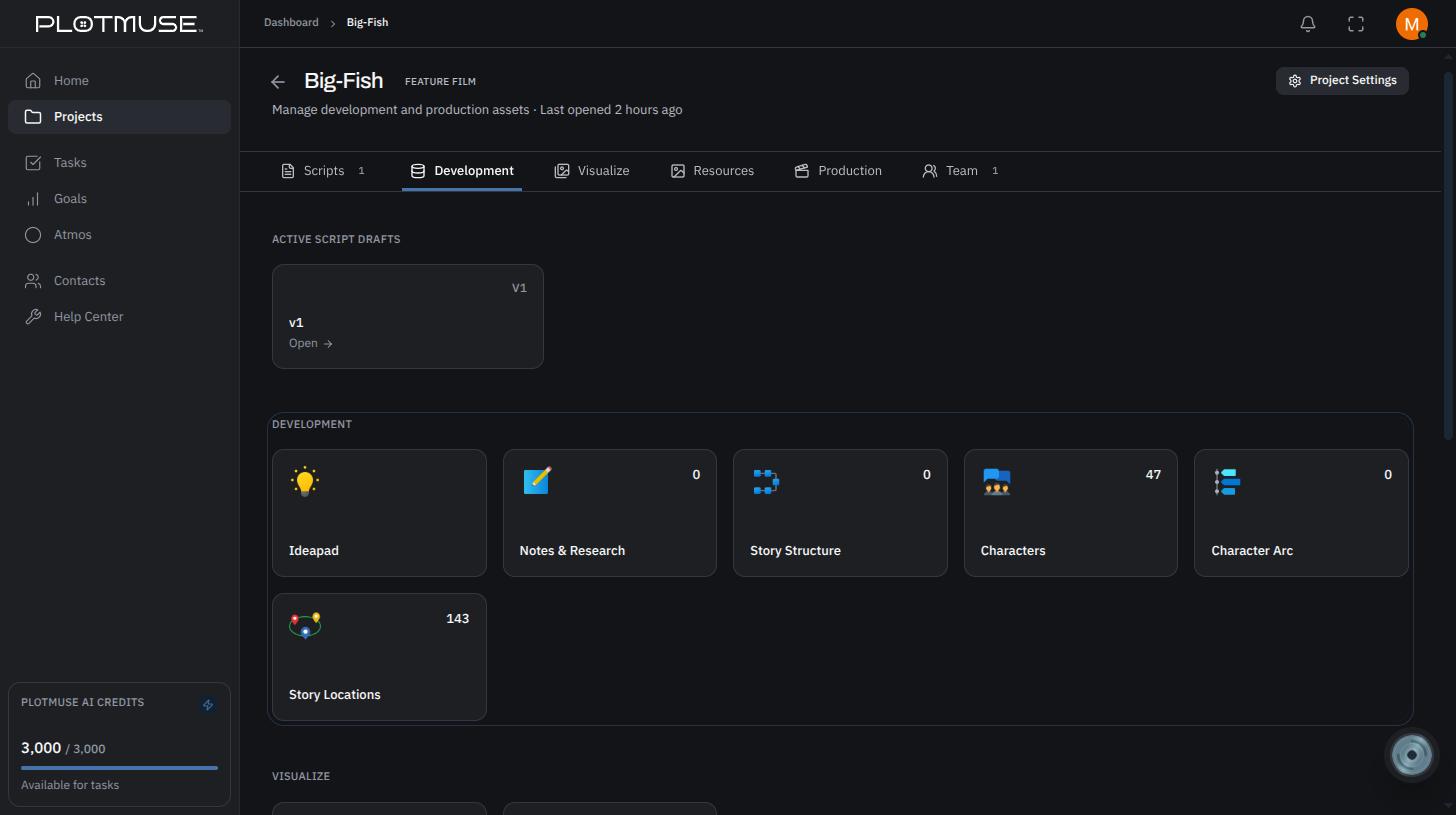
Open a project's Project Home page, go to the Development tab, and choose the Ideapad tile. You can also navigate directly to the Ideapad from your dashboard.
Starting a new idea
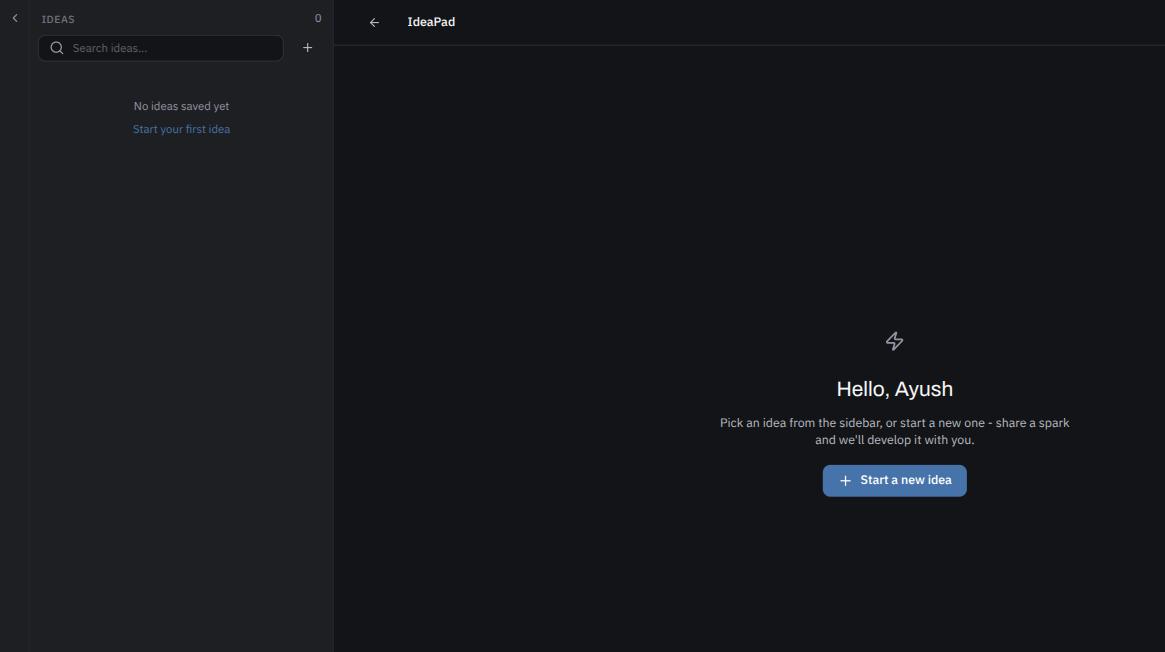
On the Ideapad home screen, click Start a new idea, or use the + button in the sidebar list of saved ideas. Give your idea a name in the Create New Idea dialog and click Create.
Brainstorming
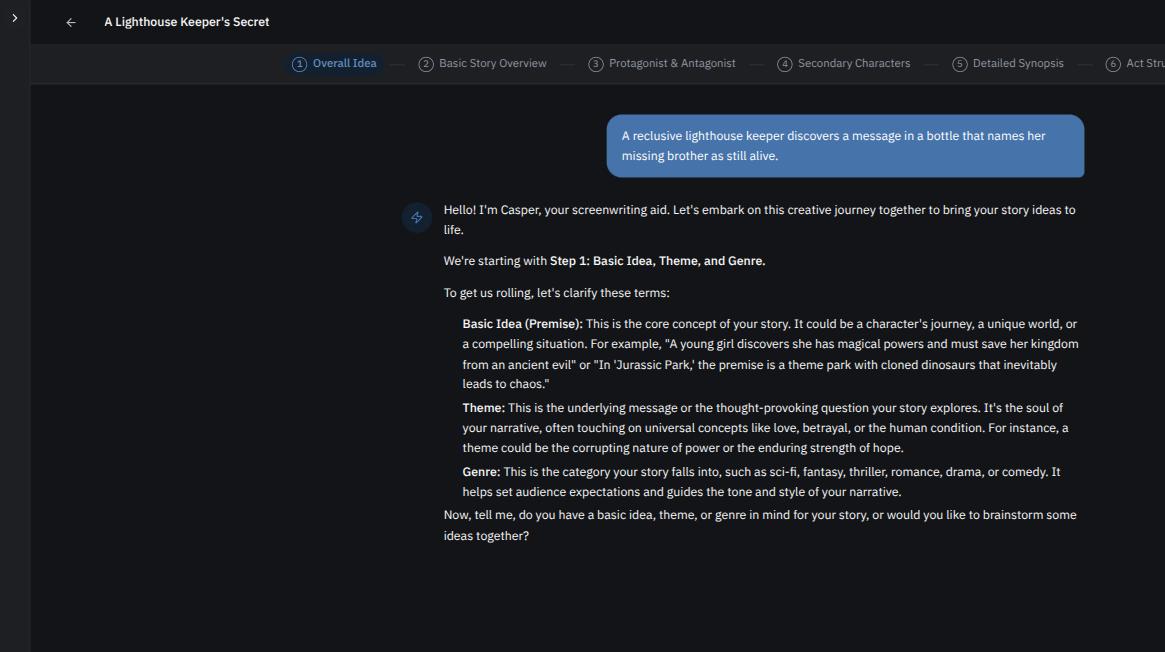
Once an idea is open, type into the composer at the bottom of the screen — a genre, a character, a single scene, anything you've got — and press Enter to send it. Plotmuse's AI responds with developed ideas you can keep building on.
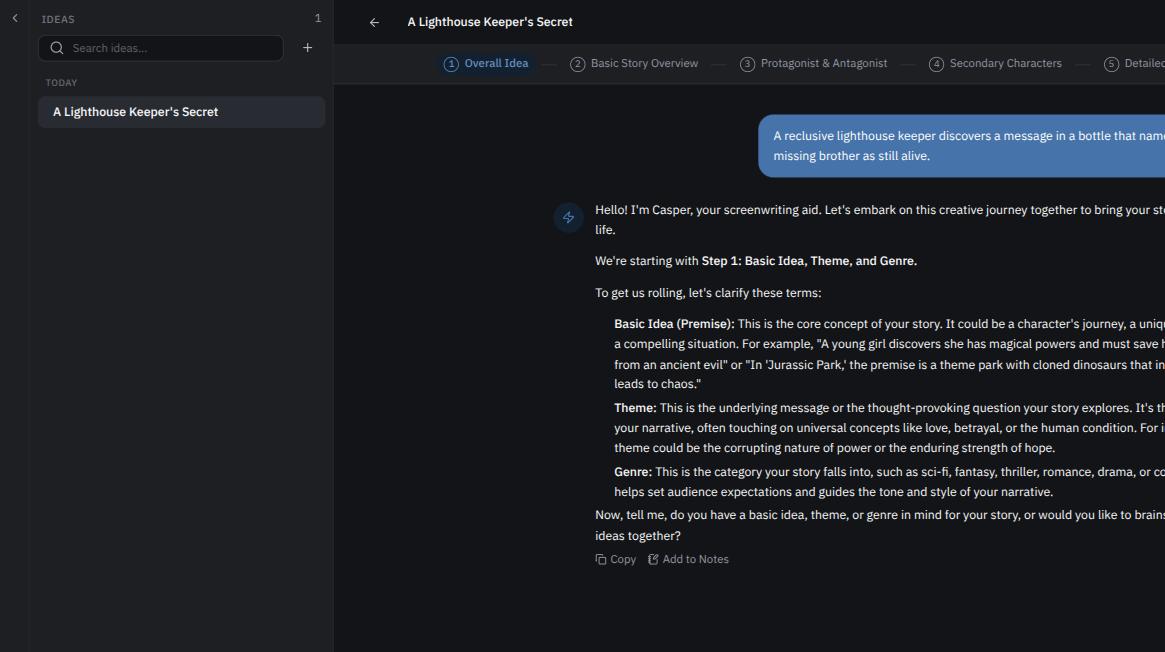
Each AI reply has two hover actions:
- Copy — copy the reply's text
- Add to Notes — send it straight into your idea's Notes panel
Tracking your progress
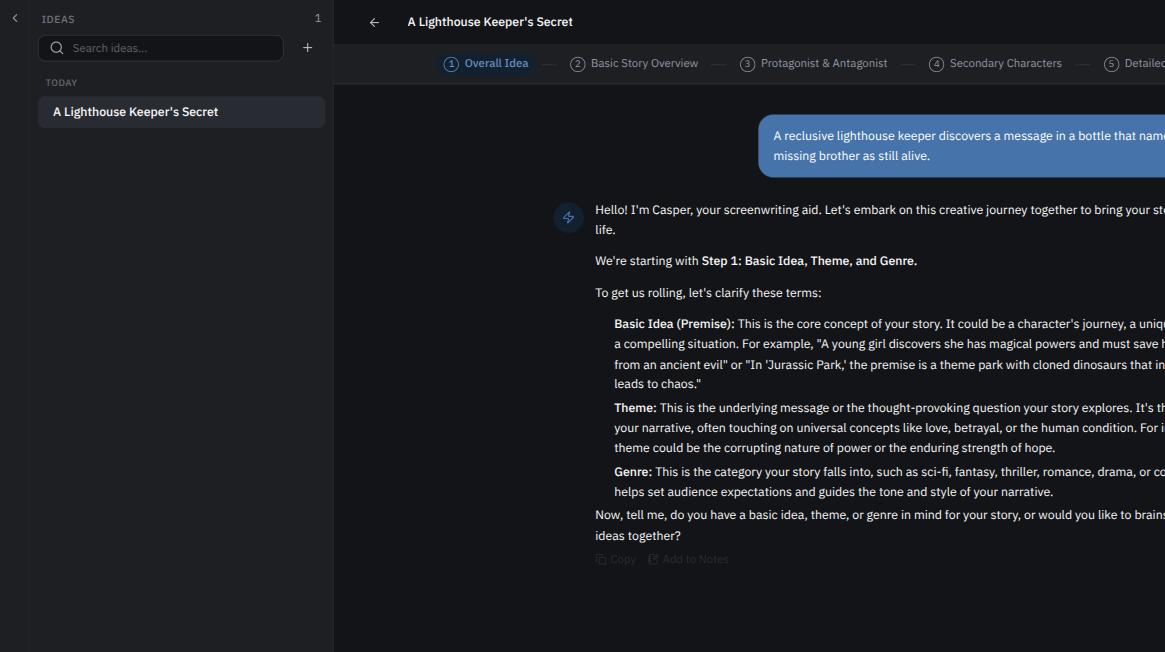
A progress rail above the conversation tracks your idea through six stages, from a rough spark to something you could hand to the Story Structure tool:
- Overall Idea
- Basic Story Overview
- Protagonist & Antagonist
- Secondary Characters
- Detailed Synopsis
- Act Structure
You don't move through these yourself — Plotmuse's AI advances the tracker as your conversation gives it enough to work with on each stage, so you can just keep talking. Completed stages show as checked off, and the rail always shows where your idea currently stands.
Keeping notes
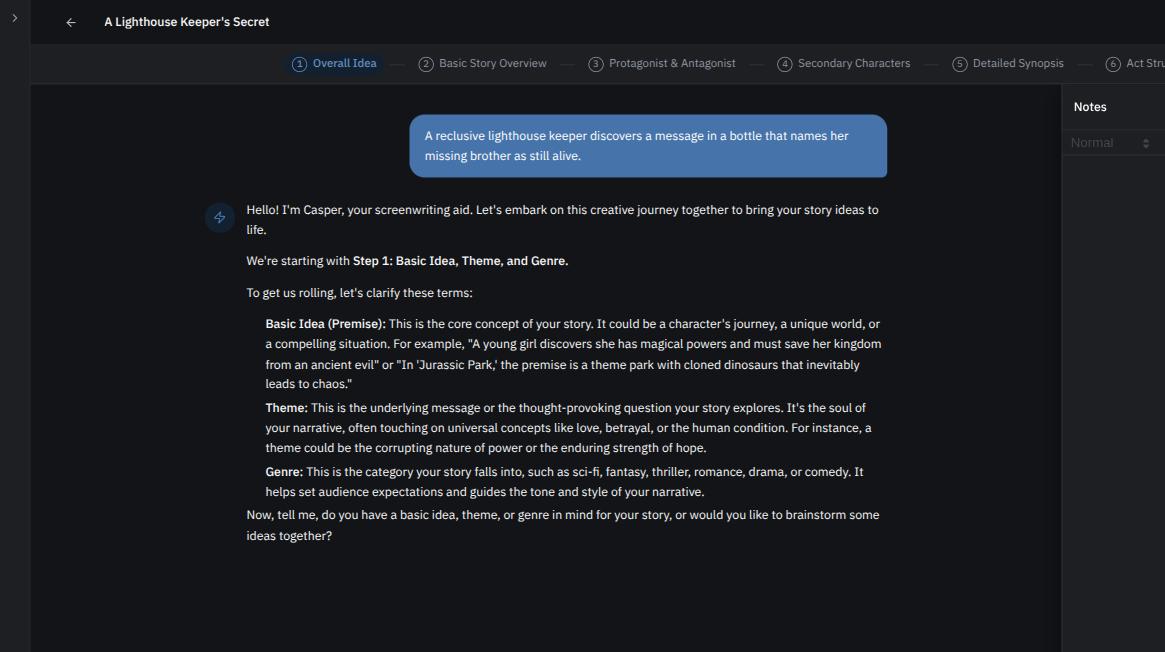
Click Notes in the header to open a rich-text notes panel next to your conversation, where you can freely write, paste, and organize anything worth keeping from the brainstorm. Notes save automatically.
What's next
When your idea is ready to become a script, start turning it into a shape with Using the Story Structure Tool.
Was this article helpful?