
Creating a Project
Start a blank project, import an existing script, or explore a demo project.
Every script, character, storyboard and moodboard in Plotmuse lives inside a project. This article covers the three ways to start one.
Start the create flow
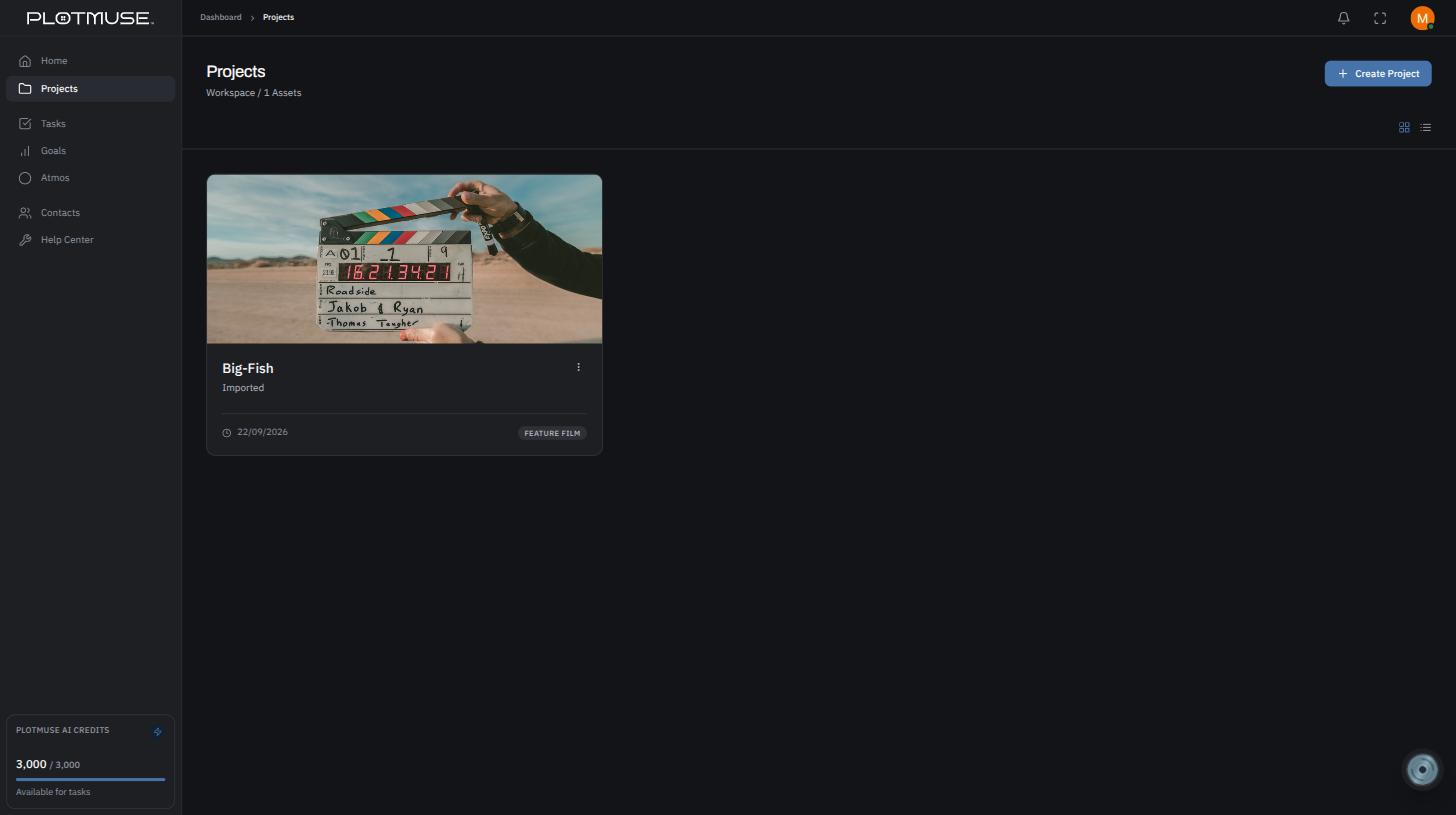
From your dashboard, go to Projects in the left sidebar, then click Create Project in the top right. If you don't have any projects yet, you'll also see a Create First Project button on the empty state.
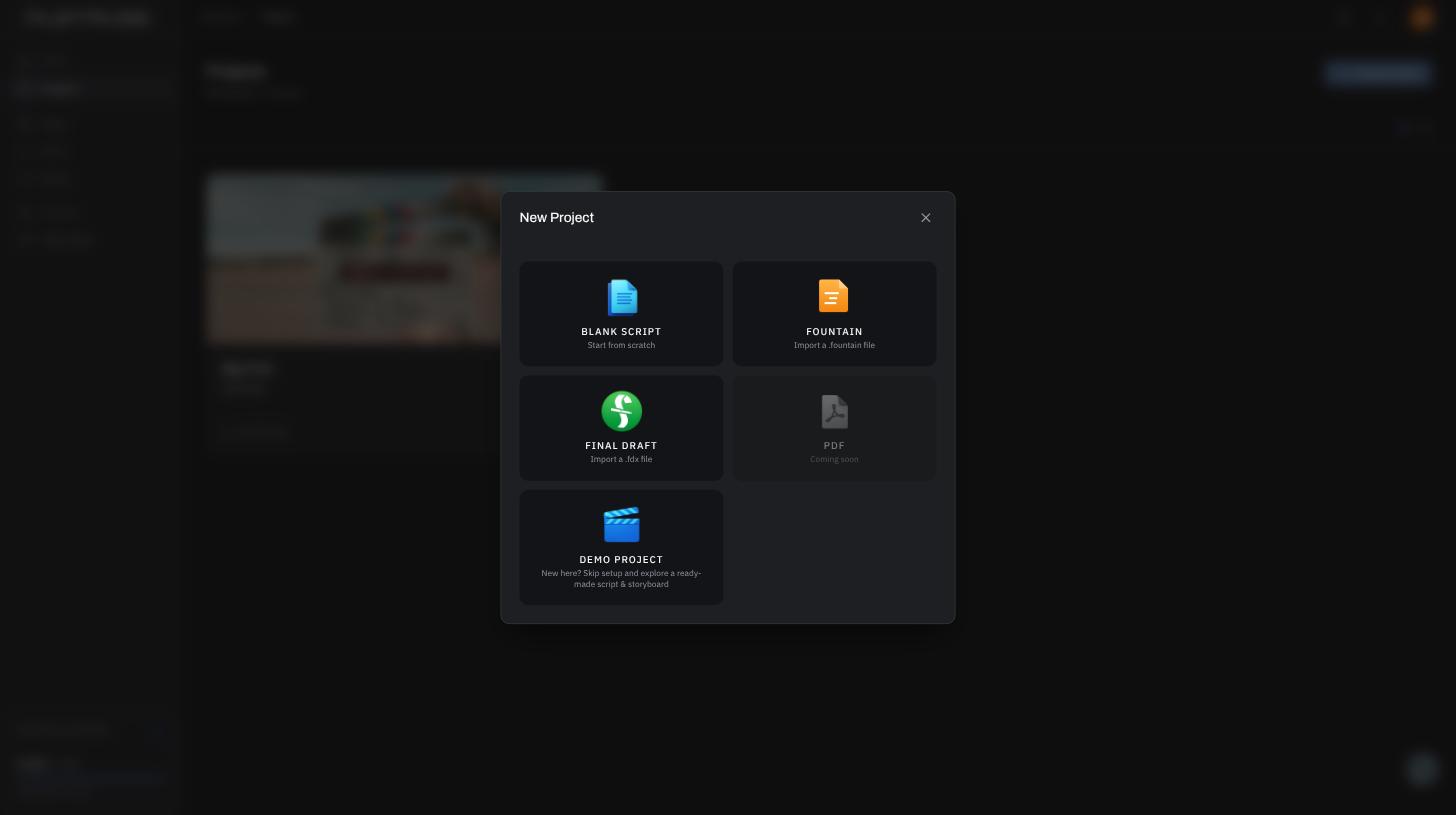
This opens the New Project dialog with four options:
- Blank Script — start from scratch
- Fountain — import a
.fountainfile - Final Draft — import a
.fdxfile - Demo Project — skip setup entirely and explore a ready-made sample script and storyboard
Option A — Blank script
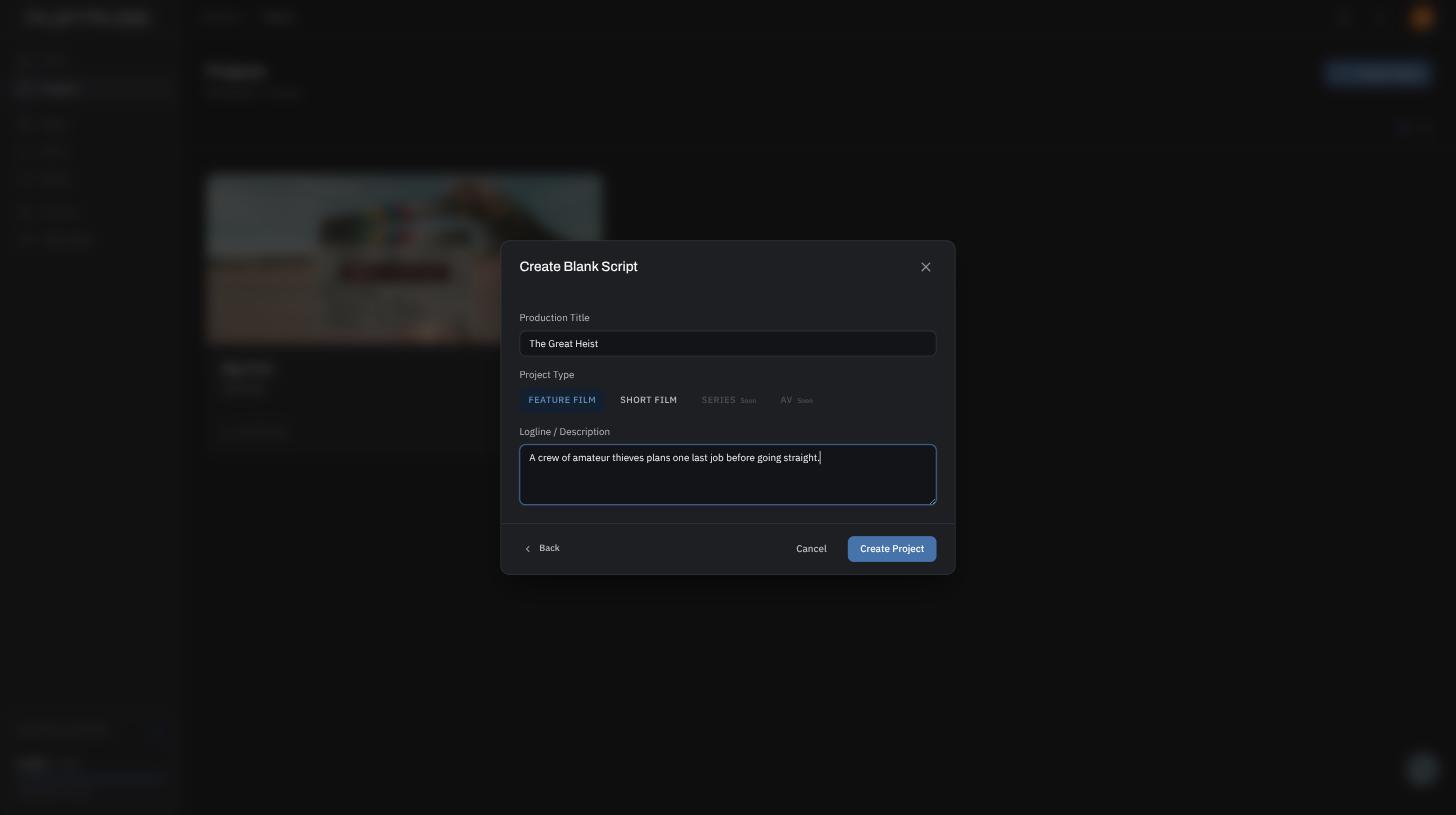
- Choose Blank Script.
- Enter a Production Title (e.g. "The Great Heist").
- Pick a Project Type — Feature Film or Short Film (Series and AV are coming soon).
- Optionally add a Logline / Description.
- Click Create Project.
Option B — Import a script
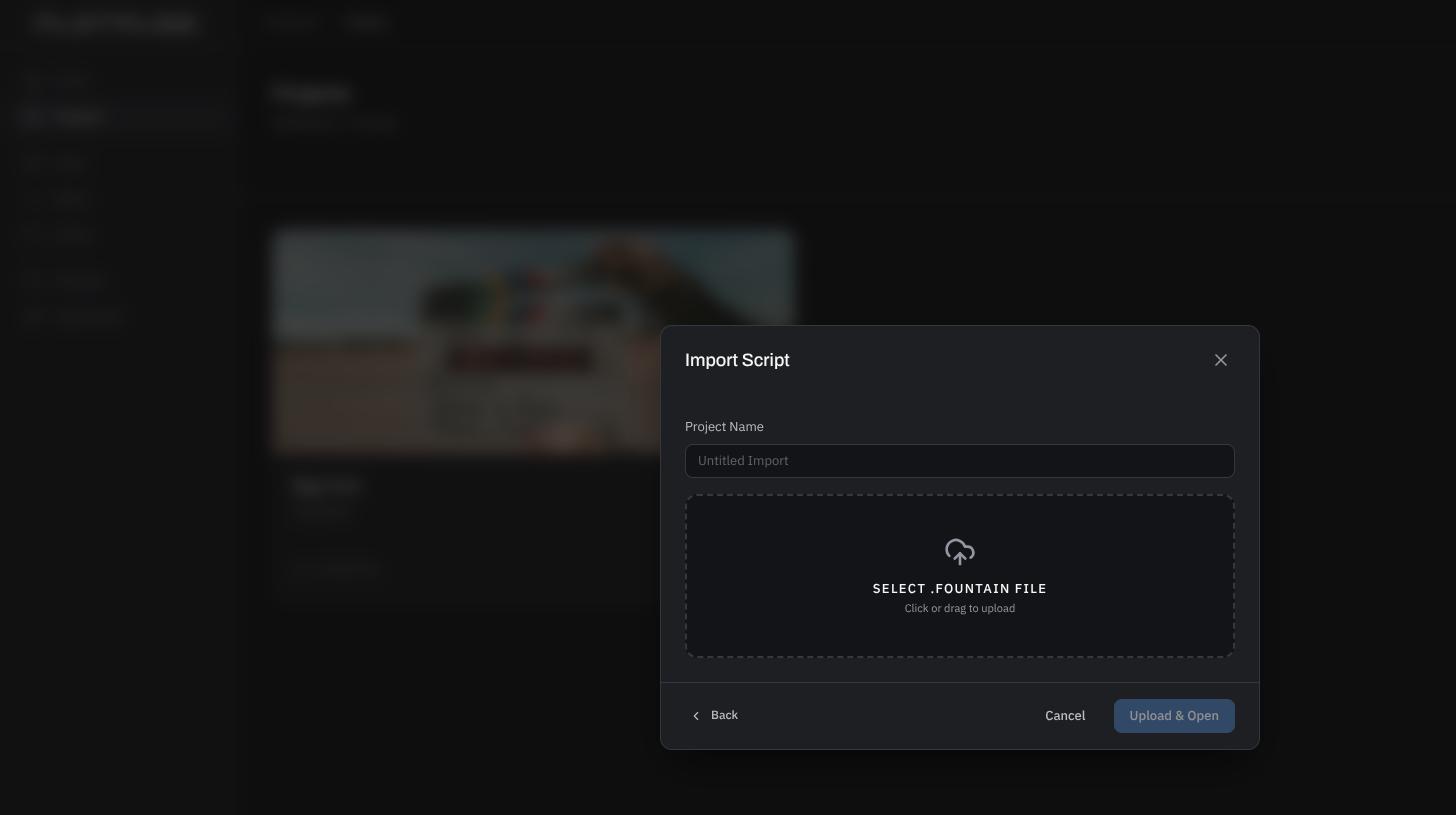
- Choose Fountain or Final Draft, depending on your file.
- Enter a Project Name (defaults to "Untitled Import" if left blank).
- Drag your
.fountainor.fdxfile onto the drop zone, or click to browse for it. - Click Upload & Open.
Your script's scenes, characters and formatting are parsed automatically — you'll land straight in the script editor once the import finishes.
Option C — Try the demo project
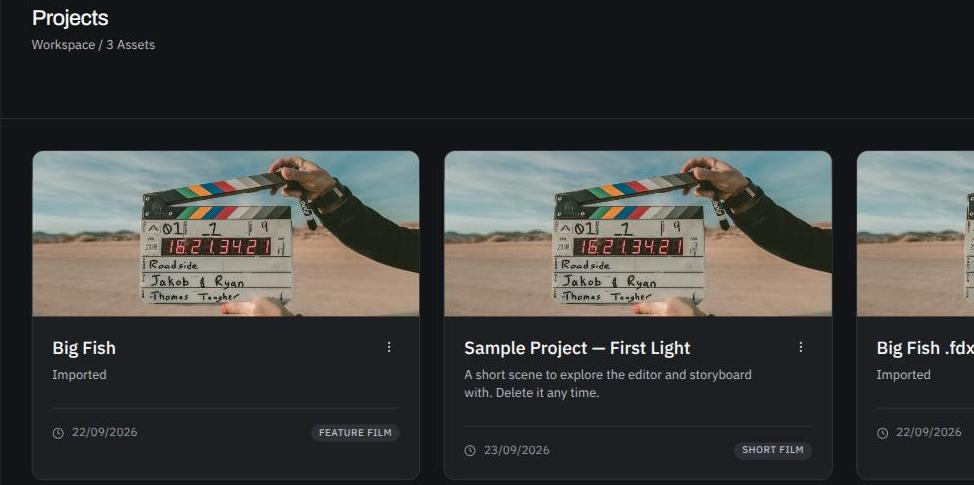
Click Demo Project and Plotmuse instantly adds a fully-populated sample project — "Sample Project — First Light" — to your Projects list, with a script and a storyboard already filled in. This is the fastest way to see what a finished project looks like before building your own.
Inside your project
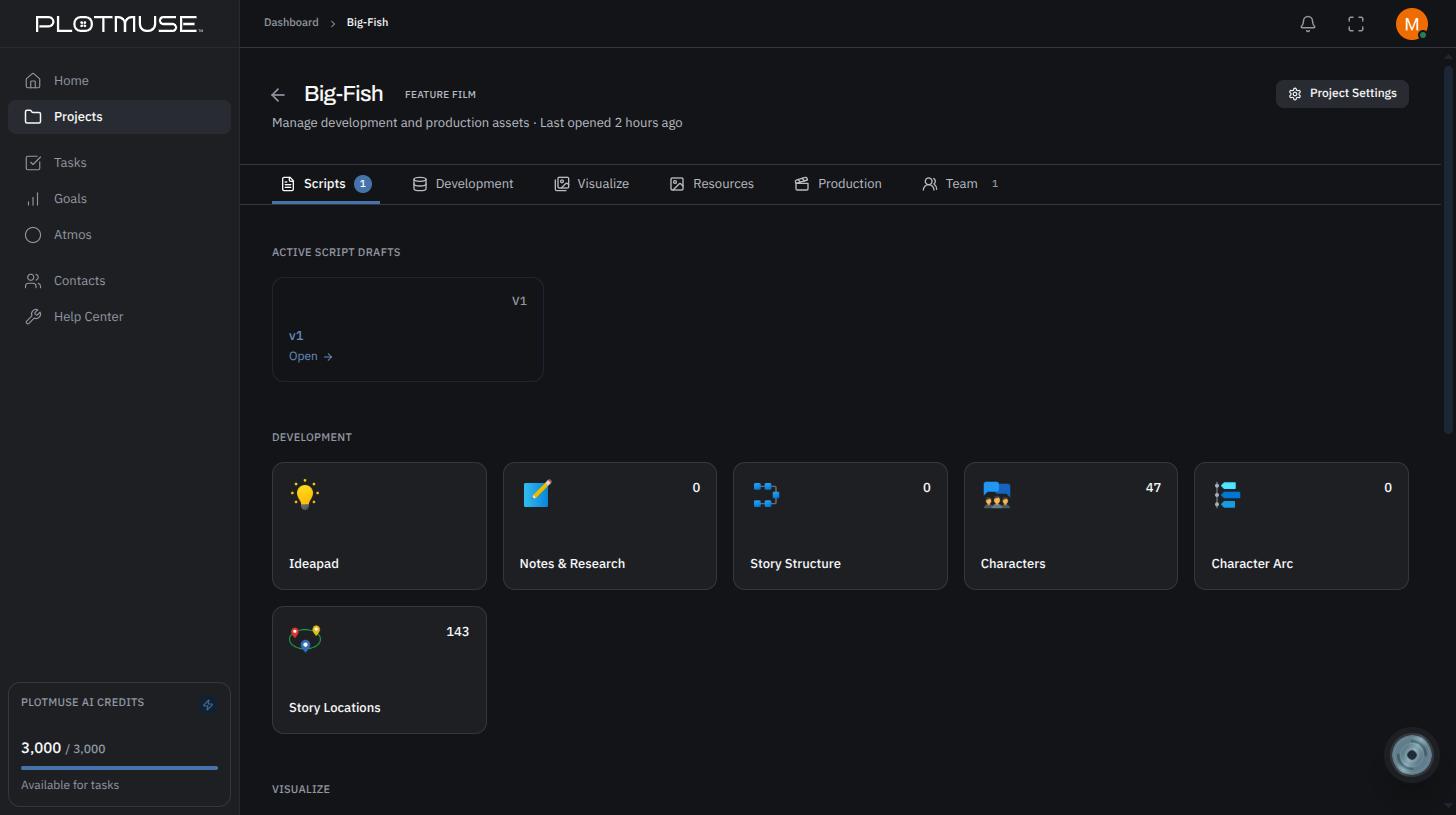
Open any project and its Project Home page organizes everything into tabs:
- Scripts — your script drafts; open one to jump into the editor
- Development — Ideapad, Notes & Research, Story Structure, Characters, Story Locations, and the Character Arc tool
- Visualize — Storyboard and Moodboards
- Resources — your Media Library and Doc Library, a one-stop home for reference images, research and documents that don't belong in the script itself
- Team — invite collaborators to the project
What's next
Once your project exists, open it and head to Writing a Script.
Was this article helpful?