
Using the Character Arc Tool
Track how each character changes across your story's structure, color-coded and at a glance.
The Character Arc tool plots how your characters change — and when — against a story structure of your choice, so you can see everyone's development at a glance instead of hunting through the script scene by scene.
Getting there
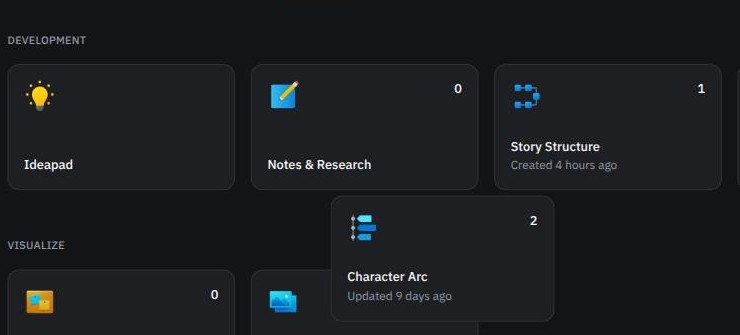
From a project's Project Home page, open the Development tab, then choose the Character Arc tile. This opens the Character Arc Hub.
Creating a track
On the Character Arc Hub, click New Track and give it a name. Opening your new track then asks you to pick the story structure you want to plot against:
Classic screenplay structures — Three Act, Four Act, Five Act Modern methods — The Hero's Journey, Save the Cat, Story Circle
Each structure breaks your story into its own acts and beats — for example, Three Act gives you three acts and 8 beats, from an opening through the climax to a resolution.

Reading the grid
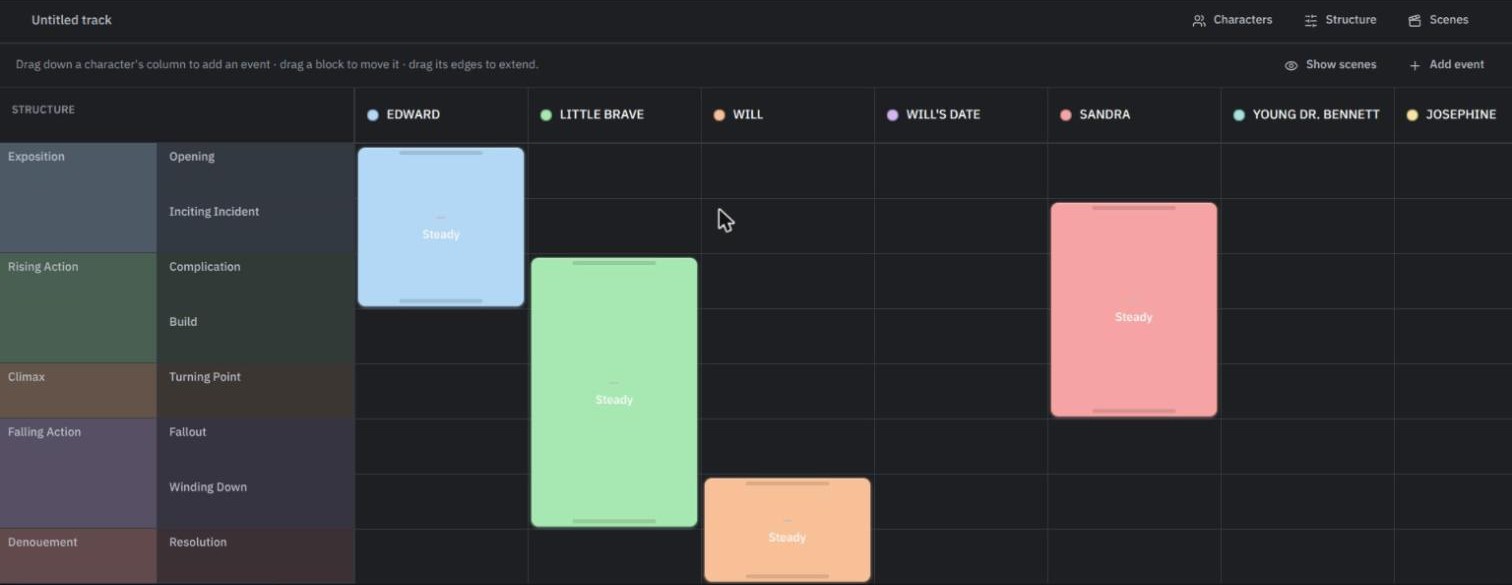
Opening a track takes you to the arc grid — one column per character, one row per act or beat in the structure you picked. Each character keeps their own color from the Character Repository, and each act's rows are tinted so the two stay easy to tell apart even with several characters plotted at once.
Use the grid to mark where a character is present, developing, or hitting a turning point at each beat — a quick way to spot a character who disappears for a whole act, or a subplot that never pays off.
What's next
Bring your idea to life scene by scene — see Using Ideapad.
Was this article helpful?