
Writing a Script
A tour of the Plotmuse script editor: formatting, versions, export, and the tools along its edges.
Plotmuse's script editor gives you industry-standard screenplay formatting alongside quick access to your characters, locations, structure and storyboard — all without leaving the page.
Opening the editor
From your dashboard, go to Projects, open a project, and select a script from the Scripts tab on the Project Home page. This opens the script editor.
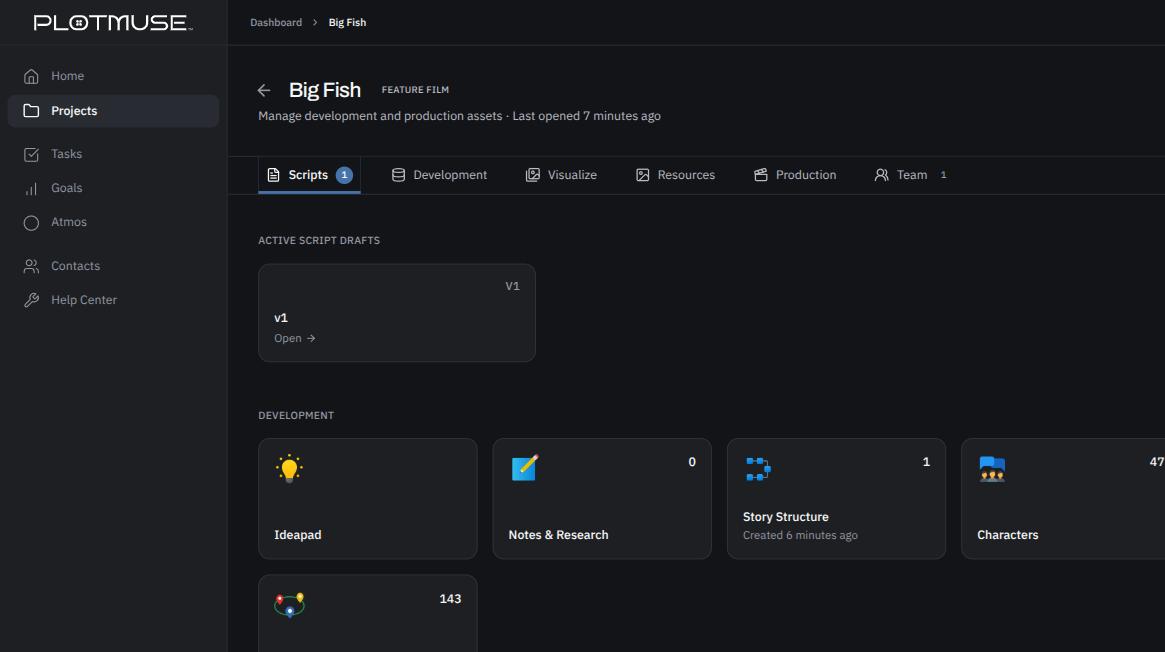
The editor layout
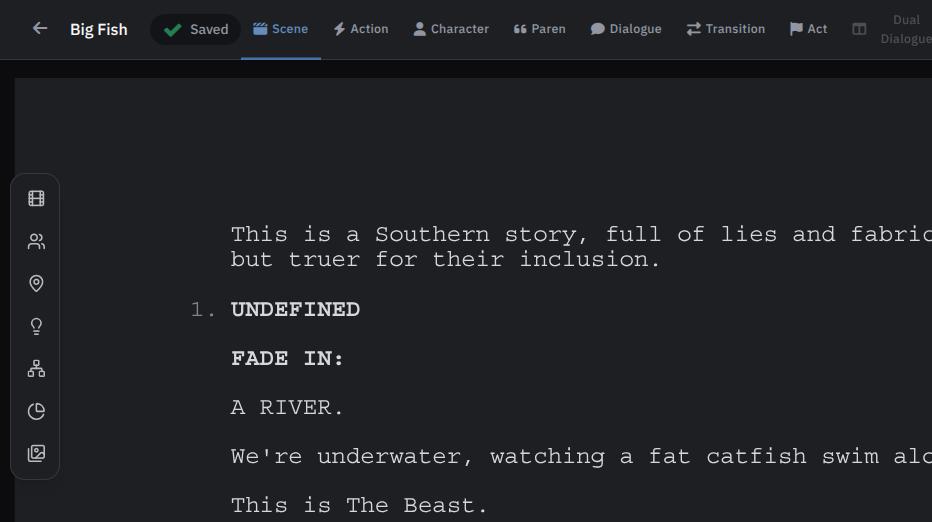
- Title bar — a back arrow returns you to the dashboard; clicking the project title opens the Edit Title Page dialog (title, author, contact info, draft date, copyright, and export).
- Autosave indicator — confirms your latest changes are saved as you type.
Formatting as you write
Use the inline format bar to switch the current line between screenplay elements: Action, Character, Parenthetical, Dialogue, and Transition. A Dual/Split Dialogue toggle lets you lay out two characters speaking side by side.
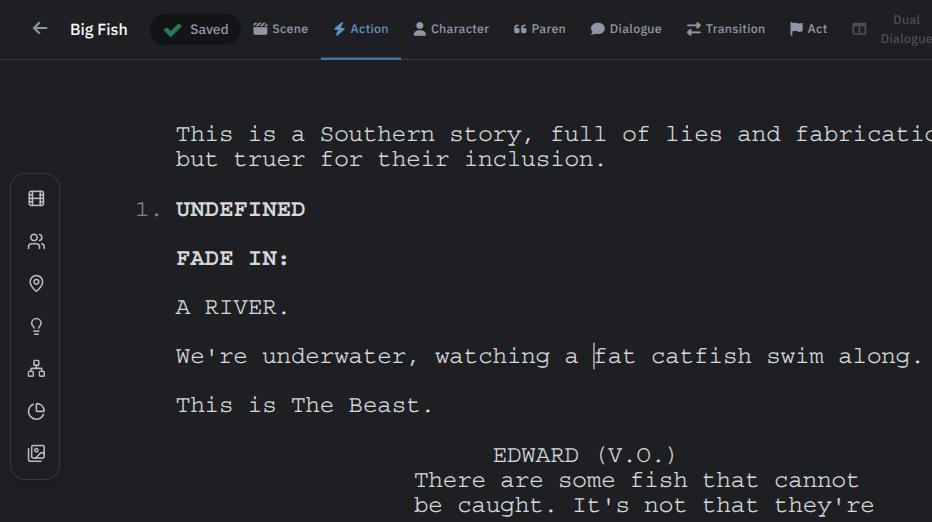
Scene headings (INT./EXT.) and transitions (CUT TO, FADE IN, DAY, NIGHT, etc.) autocomplete as you type them, so you rarely need to type a full slugline by hand.
Enter and Tab do the formatting for you
Once a line has a format, Enter and Tab are usually all you need to keep moving — you rarely have to touch the format bar again:
- Enter takes you to whatever comes next in a normal screenplay. Finish a Scene heading and it drops you into Action. Finish an Action line and it's ready for a Character name. Name your Character and it's ready for Dialogue — same if you were in a Parenthetical. Finish Dialogue and it's back to Character, ready for whoever speaks next. Finish a Transition and it starts a new Scene.
- Tab gives you the next most likely alternative, for when Enter isn't the line you wanted. From Scene, Tab drops into Action. From Action, Tab jumps to Transition. From Character, Tab skips dialogue and jumps to Action. From Dialogue, Tab gives you a Parenthetical; from a Parenthetical, Tab goes to Dialogue. From Transition, Tab starts a new Scene.
With Dual/Split Dialogue open, Tab and Enter move you between the two columns instead, so you can write both sides of an overlapping exchange without leaving the keyboard. You can also jump straight to any format with Cmd/Ctrl + 1 through 8, if you already know exactly what you want to write next.
Saving versions
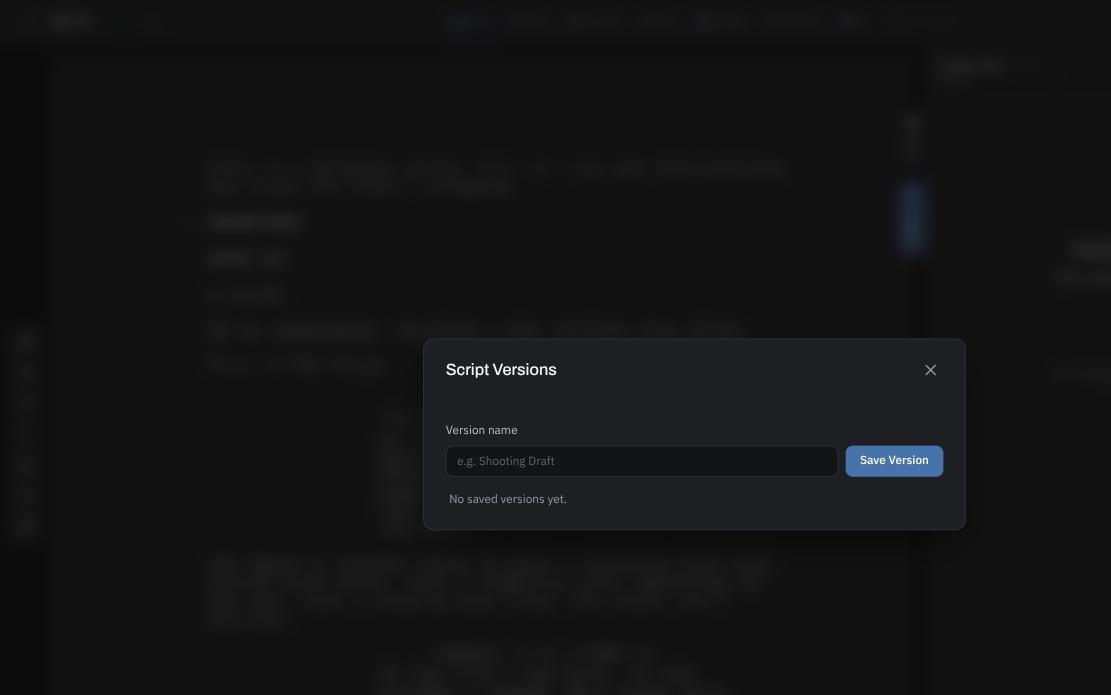
Click the Save Version icon in the right-hand toolbar to open Script Versions. Name and save a snapshot of your script at any point, and restore an earlier version later — restoring asks you to confirm, since it replaces your current content.
Exporting
From the right-hand toolbar you can export your script as a PDF (via the title page dialog) or as a Final Draft (.fdx) file.
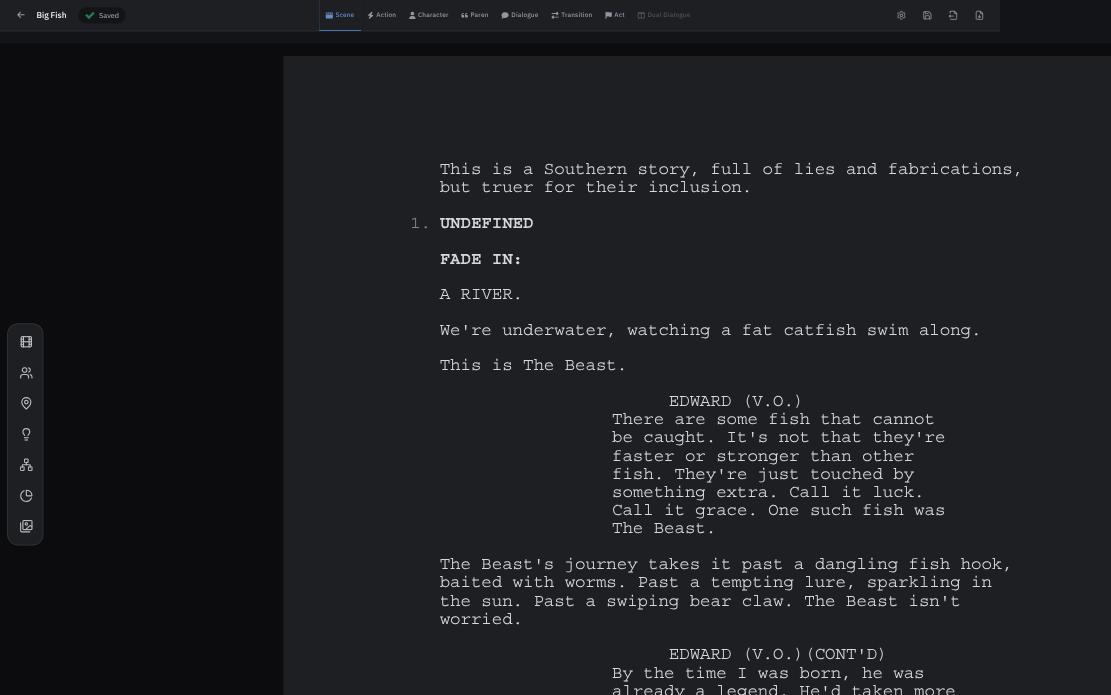
The left tool rail
Hover the icon rail on the left edge of the editor to expand quick-access panels without leaving your script:
- Scene Details, Character Details, Location Details — jump straight to a scene's, character's, or location's info
- IdeaPad Ideas — pull in brainstormed ideas
- Story Structure — see your script against your structure board
- Script Analytics — page/scene/dialogue counts and breakdowns
- StoryBoard — jump to this script's storyboard
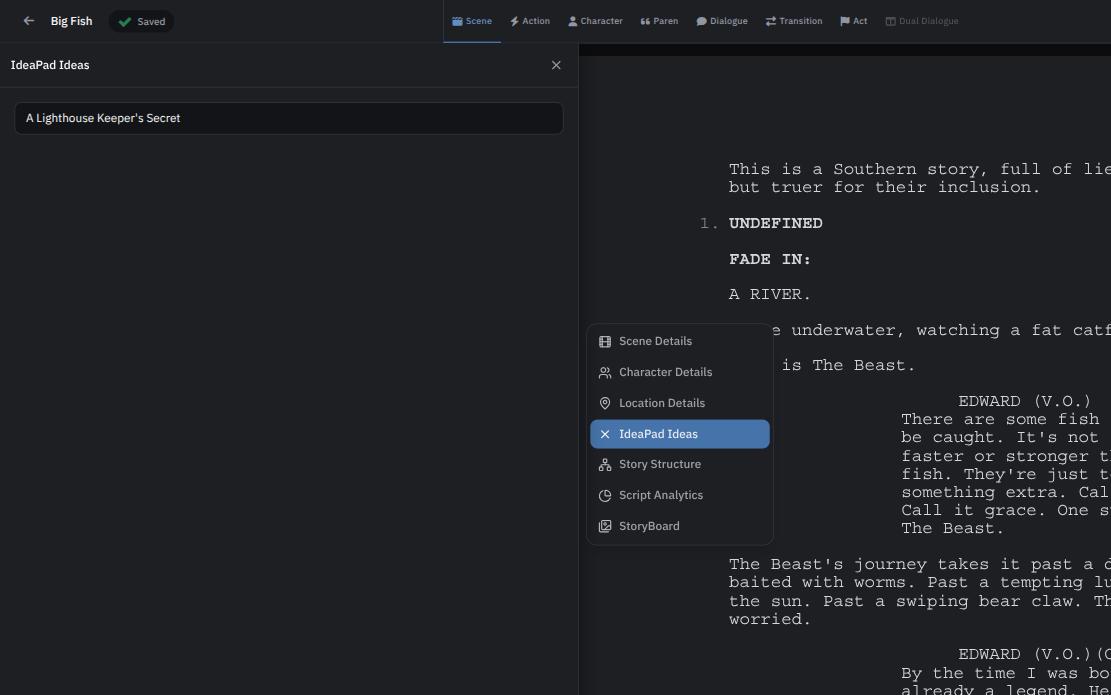
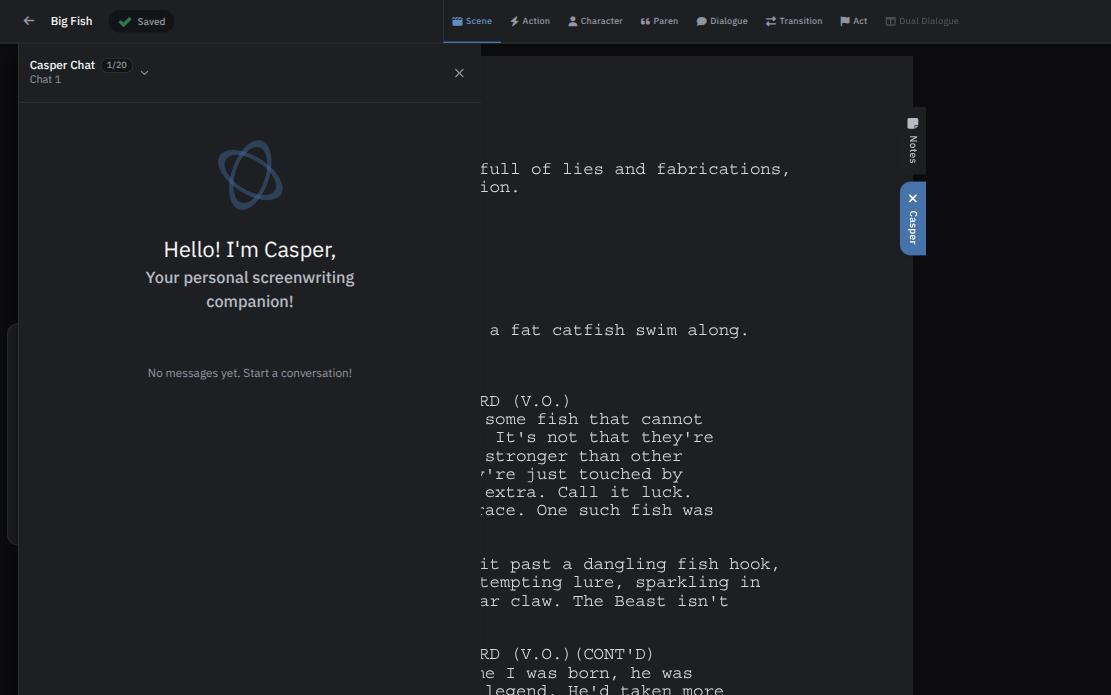
Notes and Casper
Two tabs on the right edge of the screen open a Notes panel and Casper, Plotmuse's AI writing assistant you can chat with about your script.
Zen Mode
Click the Zen Mode toggle in the bottom-left corner to hide all chrome and write distraction-free.
What's next
Add the people and places in your story — see Managing Characters and Locations.
Was this article helpful?